Organization Admin Guide
Client / Business Admin
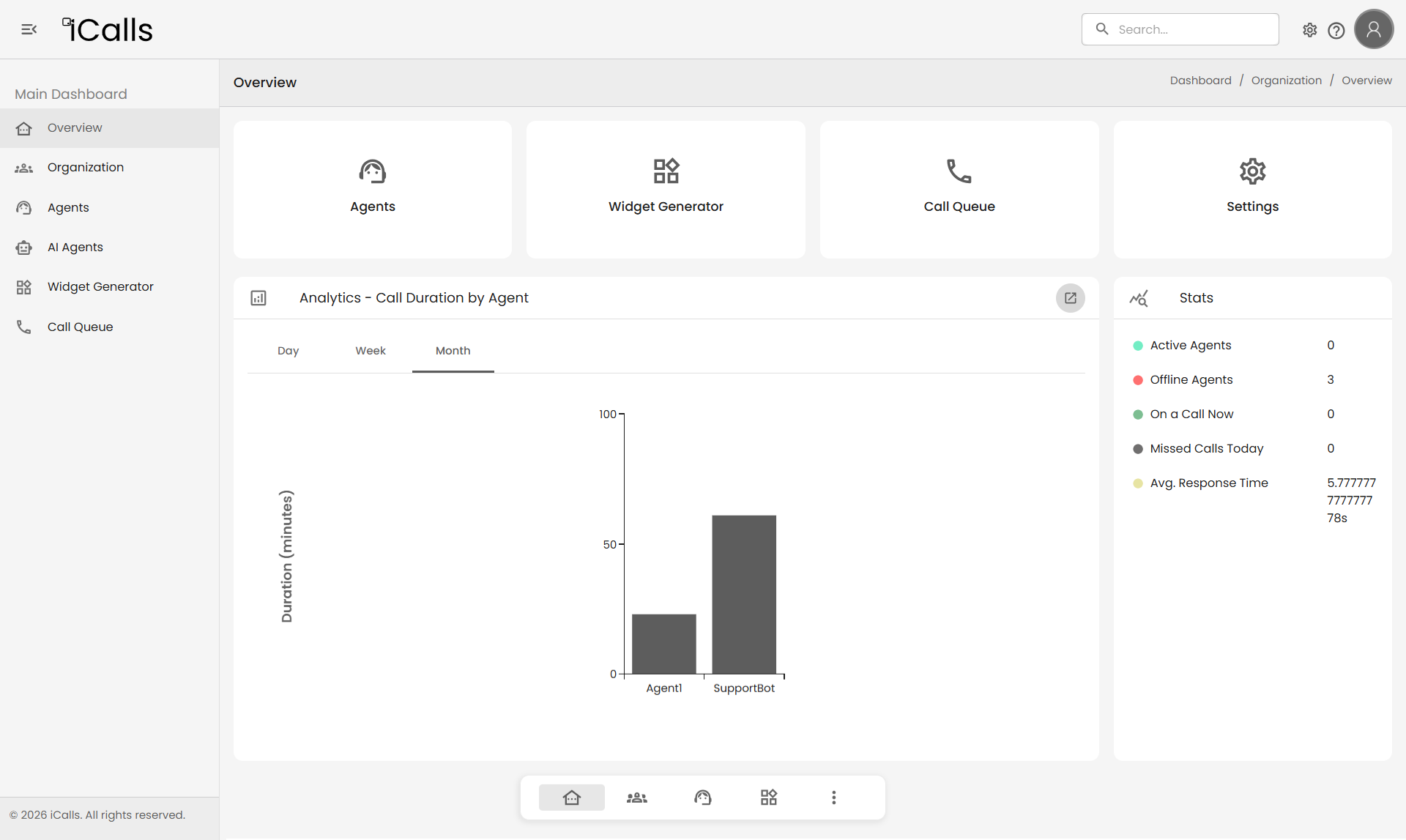
After logging in, you are redirected to the Organization Admin Dashboard, which provides a high-level overview of your organization’s activity.
Key Sections
Overview
The Overview page gives you real-time insights into system activity.
Dashboard Cards
- Agents — Total agents in your organization
- Widget Generator — Quick access to widget creation
- Call Queue — Live call monitoring
- Settings — Organization configuration access
Analytics
- Call duration by agent (Day / Week / Month)
- Active vs offline agents
- Missed calls today
- Average response time
📌 Use this page to quickly assess performance and availability.
Organization Management
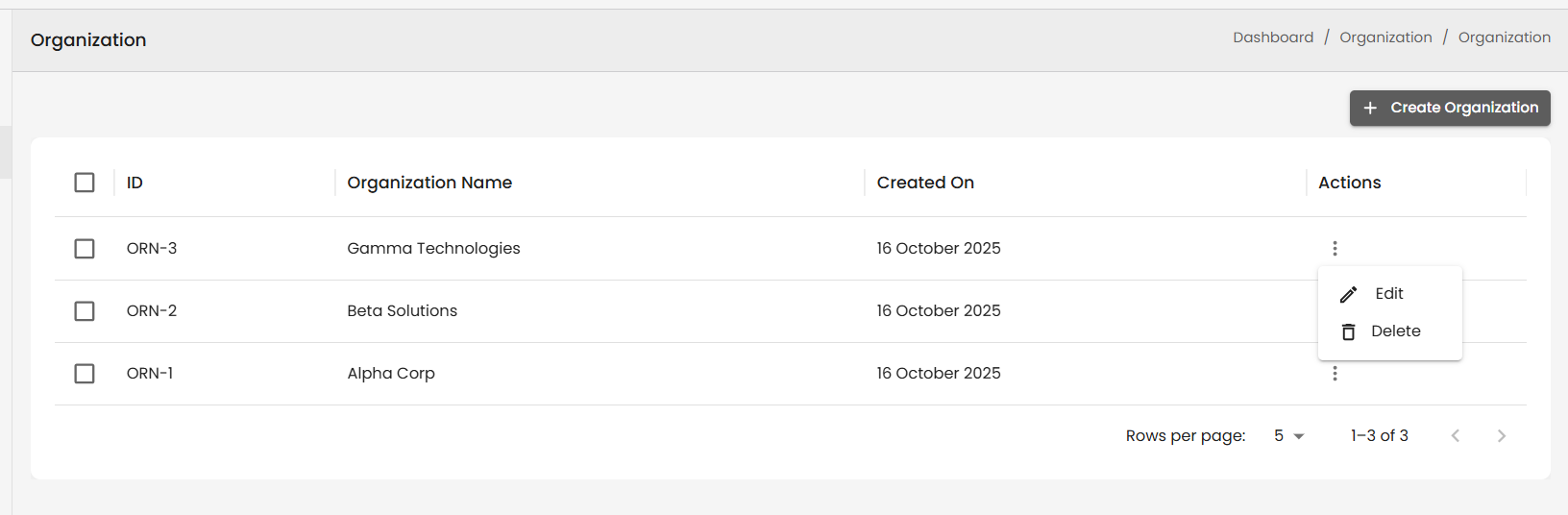
View Organizations
Navigate to Organization from the sidebar.
- Organization ID
- Organization Name
- Created Date
- Actions (edit / manage)
Create Organization
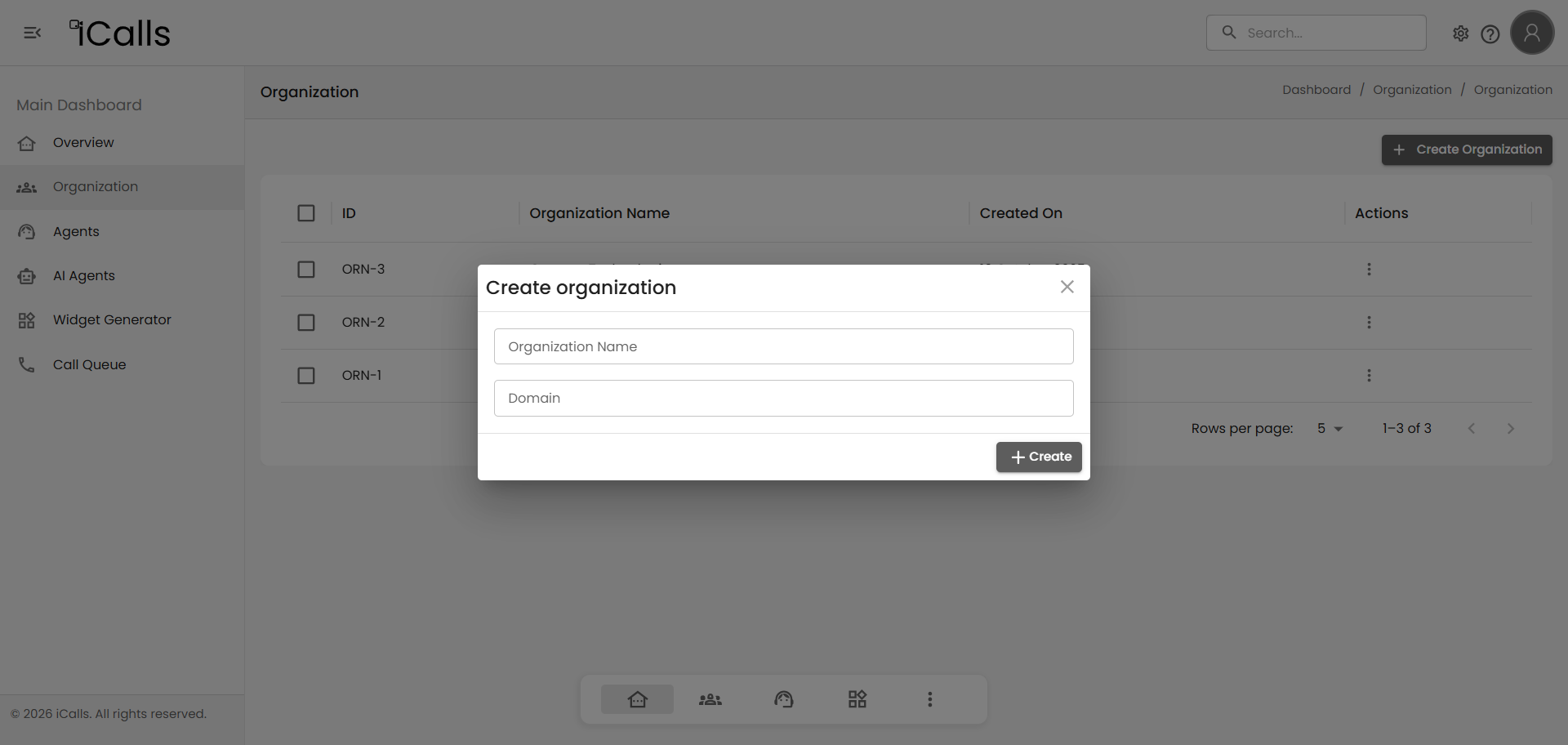
- Click Create Organization button
- Enter Organization Name and Domain
- Click Create
📌 Each organization represents a separate client or business unit.
Agent Management (Human Agents)
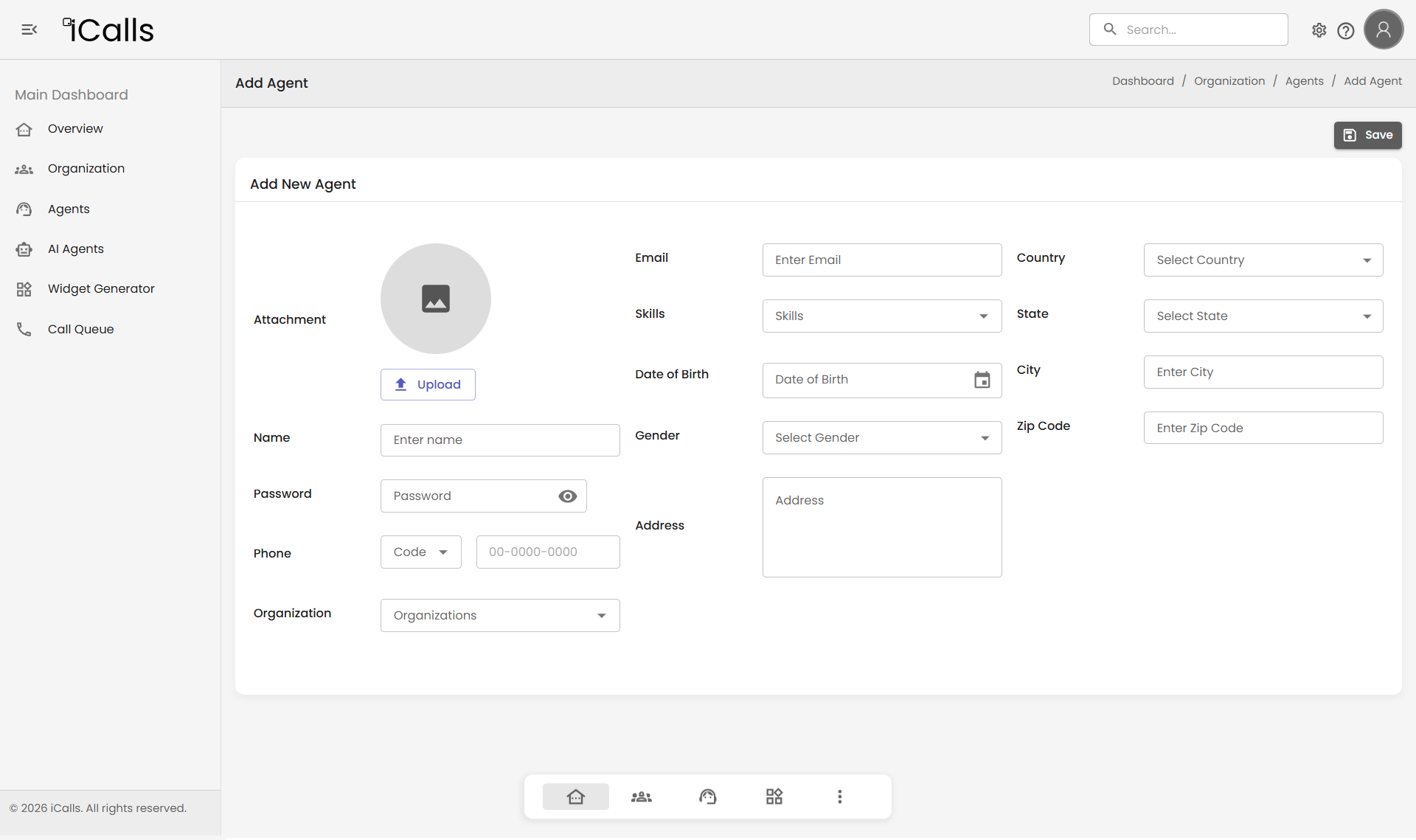
Add New Agent
- Click Add Agent
- Fill agent details (Name, Email, Password, Phone, Skills, Organization)
- Optional: DOB, address, profile image
- Click Save
📌 Agents receive login credentials and can immediately access the Agent Dashboard.
Agent Status & Availability
- Status shows whether the agent is logged in
- Availability controls call reception
- Admins can monitor availability in real time
AI Agents Management
AI Agents allow automated call handling using AI models.
View AI Agents
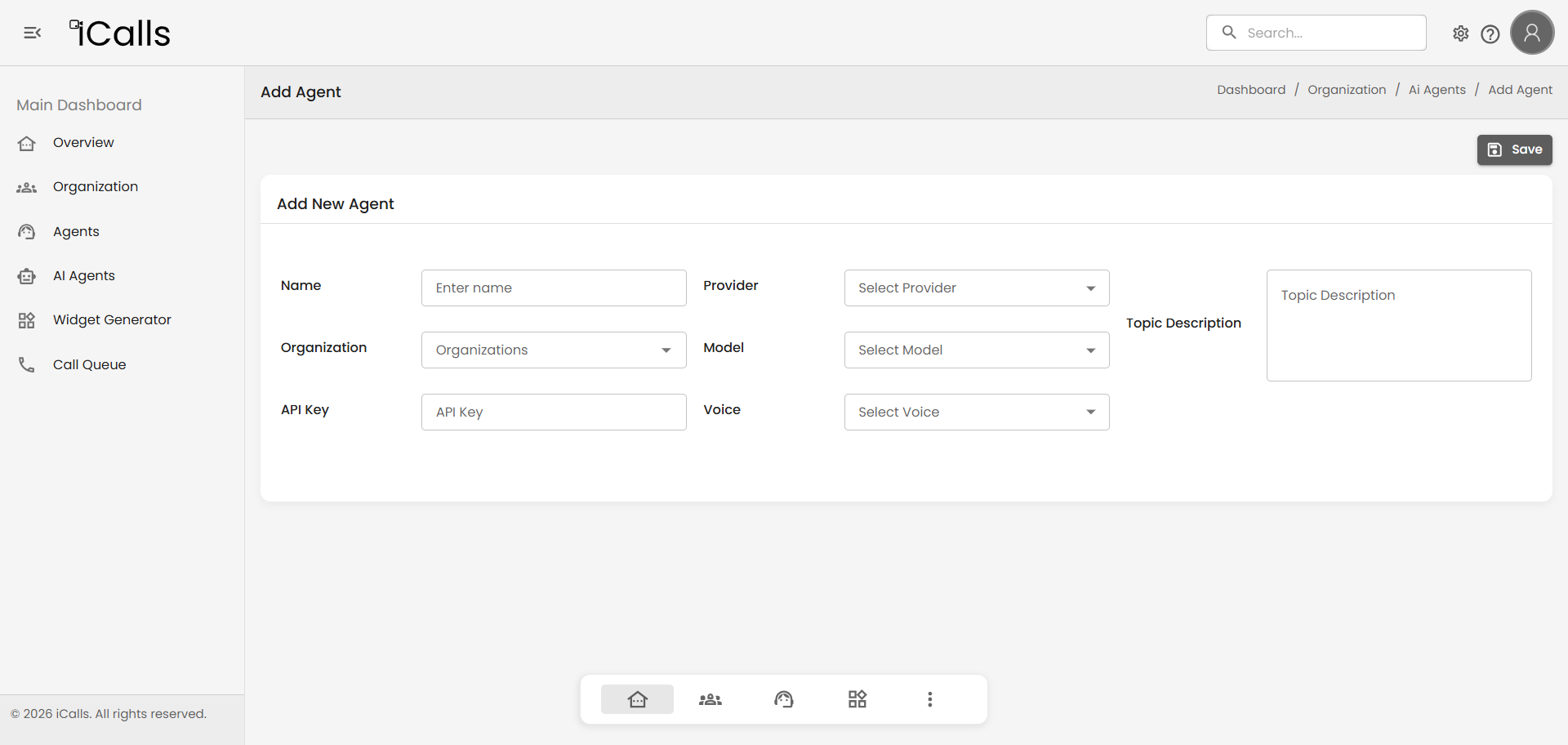
Add AI Agent
- Click Add AI Agent
- Configure provider, model, API key, voice, and topic description
- Click Save
📌 AI agents can act as primary or fallback handlers.
Widget Generator
View Widgets
- Widget ID
- Widget Name
- Status
- Created Date
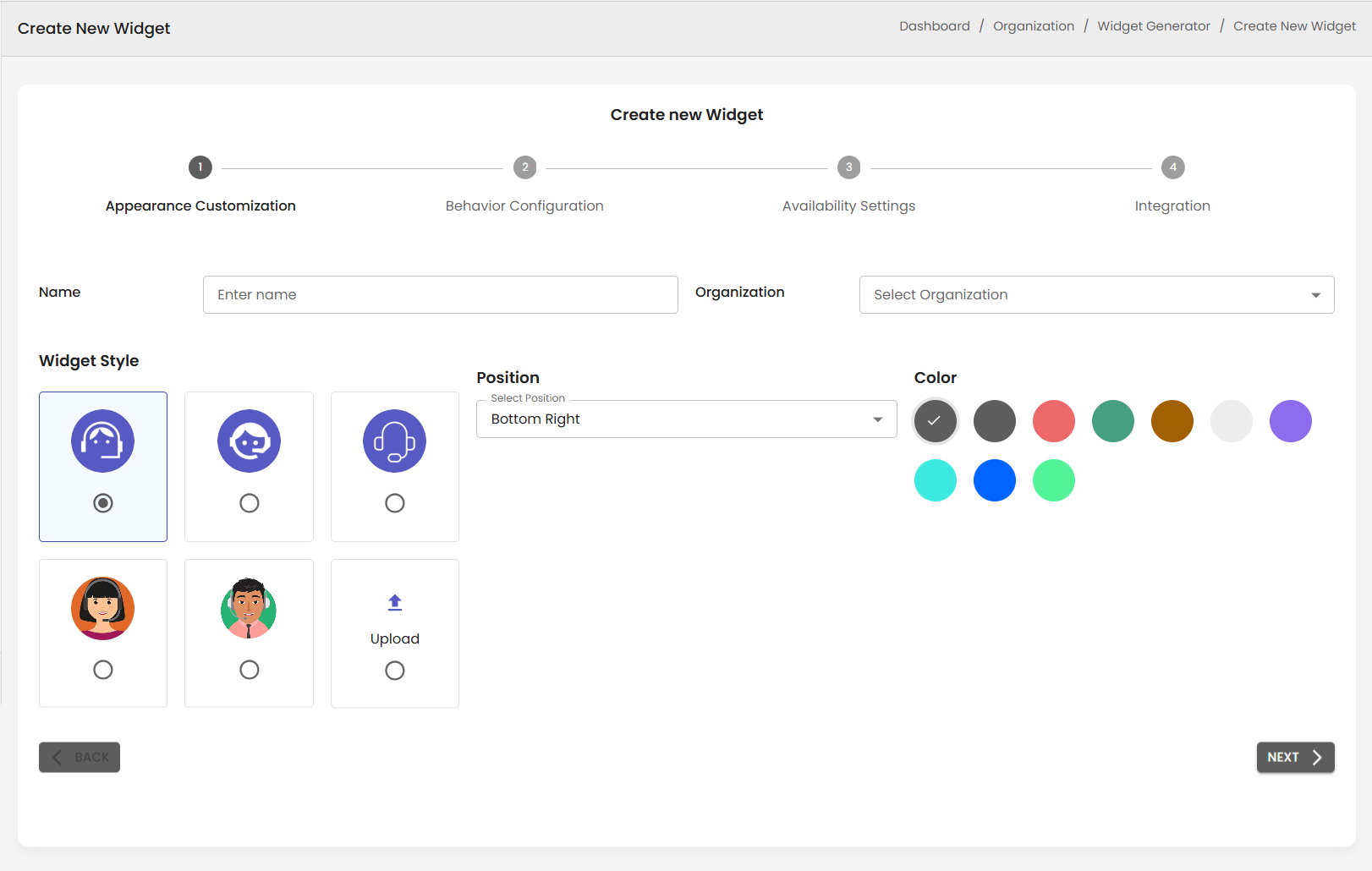
Create New Widget (4-Step Flow)
- Appearance — name, style, position, brand color
- Behavior — pre-call form & visitor details
- Availability — business hours, timezone, offline message
- Integration — generate & copy embed script
<script src="https://apps.icalls.io/backend/api/widget/embed-script?widget=YOUR_WIDGET_ID" defer></script>
📌 Widget updates apply instantly after saving.
Call Queue Management
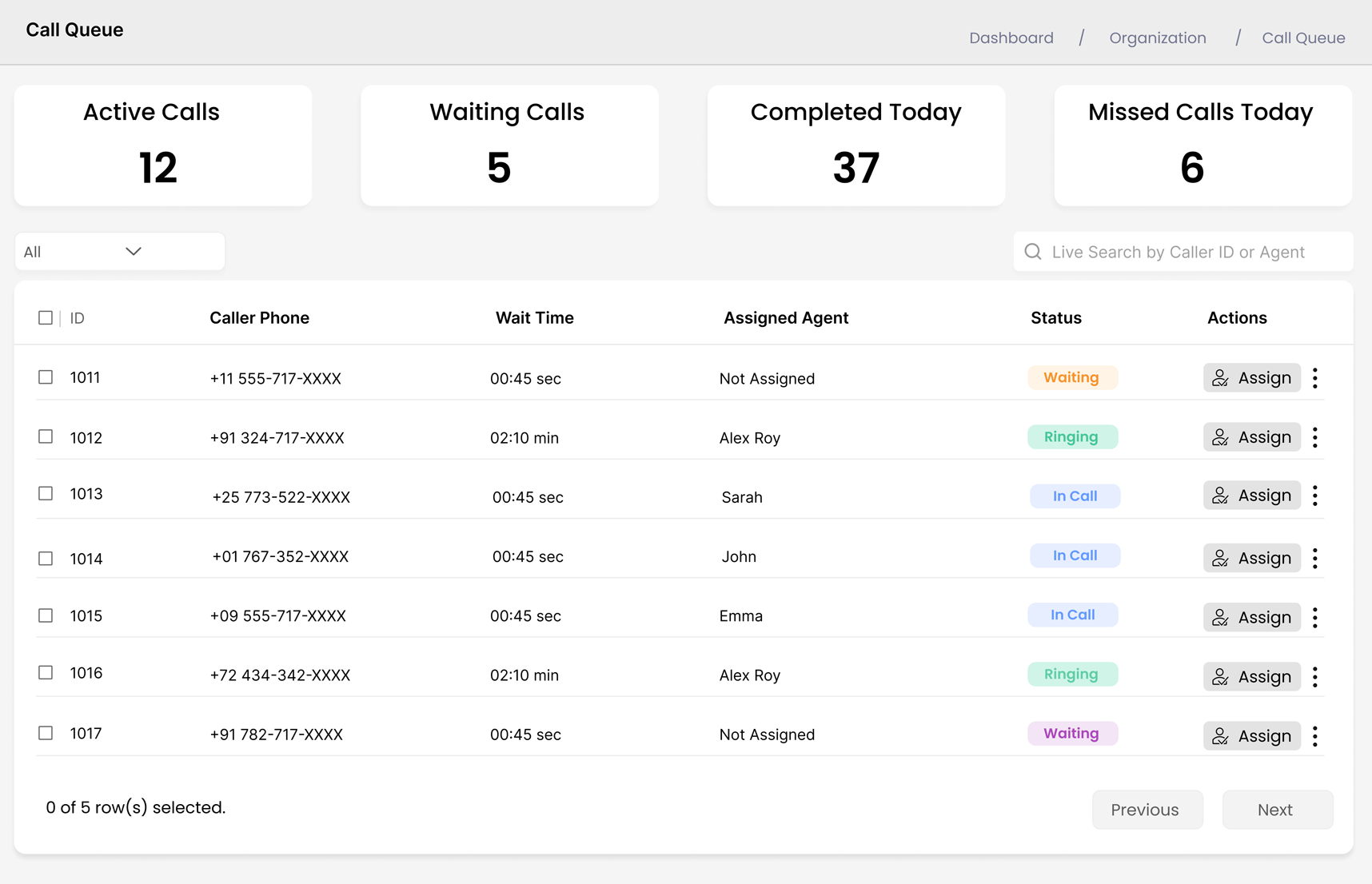
Dashboard Metrics
- Active Calls
- Waiting Calls
- Completed Today
- Missed Calls Today
Call Queue Table
- Caller ID / Phone
- Wait Time
- Assigned Agent
- Call Status
- Actions
📌 Admins can monitor queue health and agent workload.
Best Practices for Organization Admins
- Ensure enough agents are online during business hours
- Configure fallback AI agents
- Customize widgets to match branding
- Monitor call queue regularly
- Review analytics frequently
- Keep agent data up to date
Permissions Summary
| Feature | Organization Admin |
|---|---|
| Create Organization | ✅ |
| Add / Manage Agents | ✅ |
| Add AI Agents | ✅ |
| Create Widgets | ✅ |
| View Call Queue | ✅ |
| View Analytics | ✅ |
| Manage Profile | ✅ |