Getting Started
Quick Start: Go Live in 5 Minutes 🚀
Follow these steps to start using iCalls immediately.
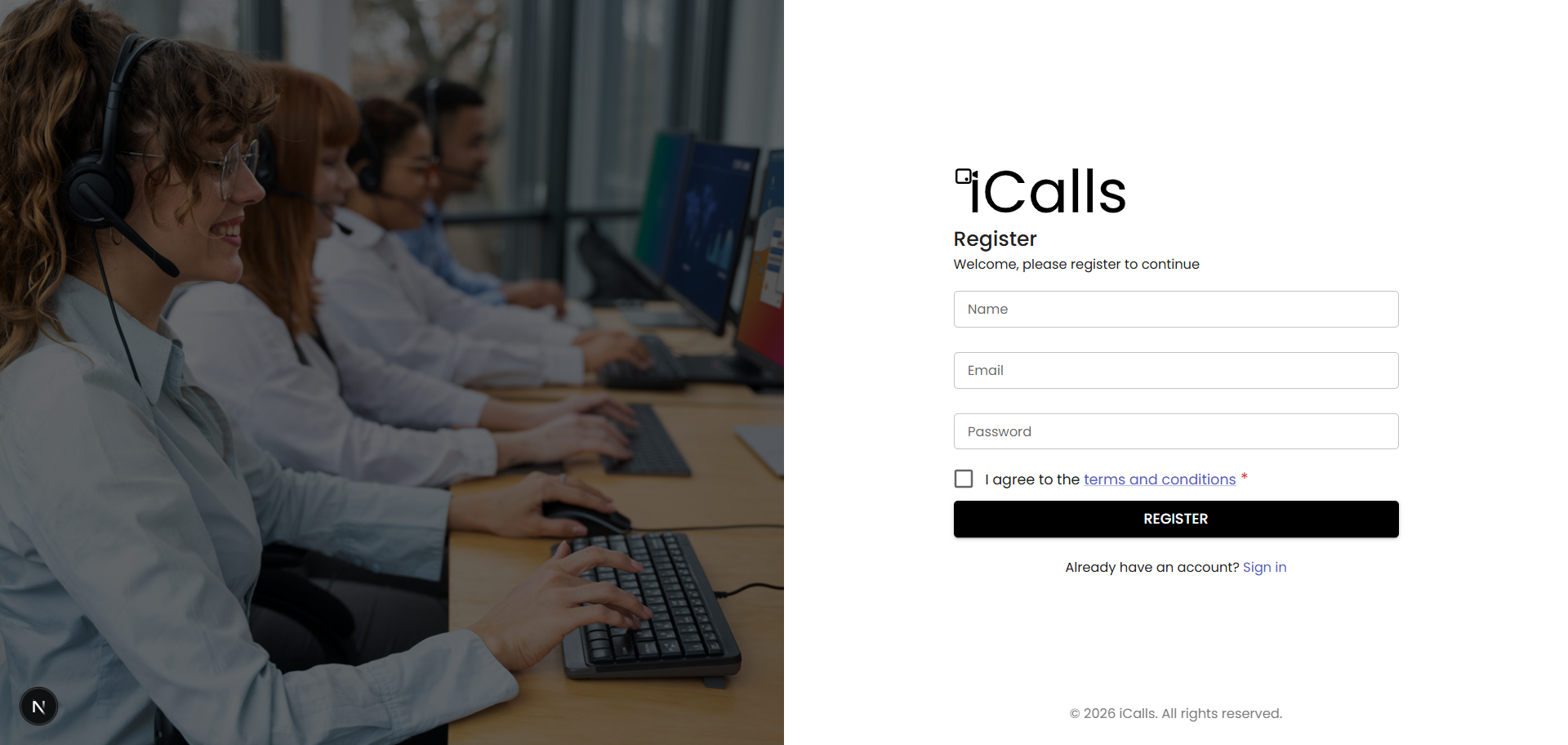
Step 1: Register an Account
- Visit the iCalls Register page
- Enter:
- Name
- Password
- Accept the terms and conditions
- Click Register
✅ This creates your Organization Admin account.
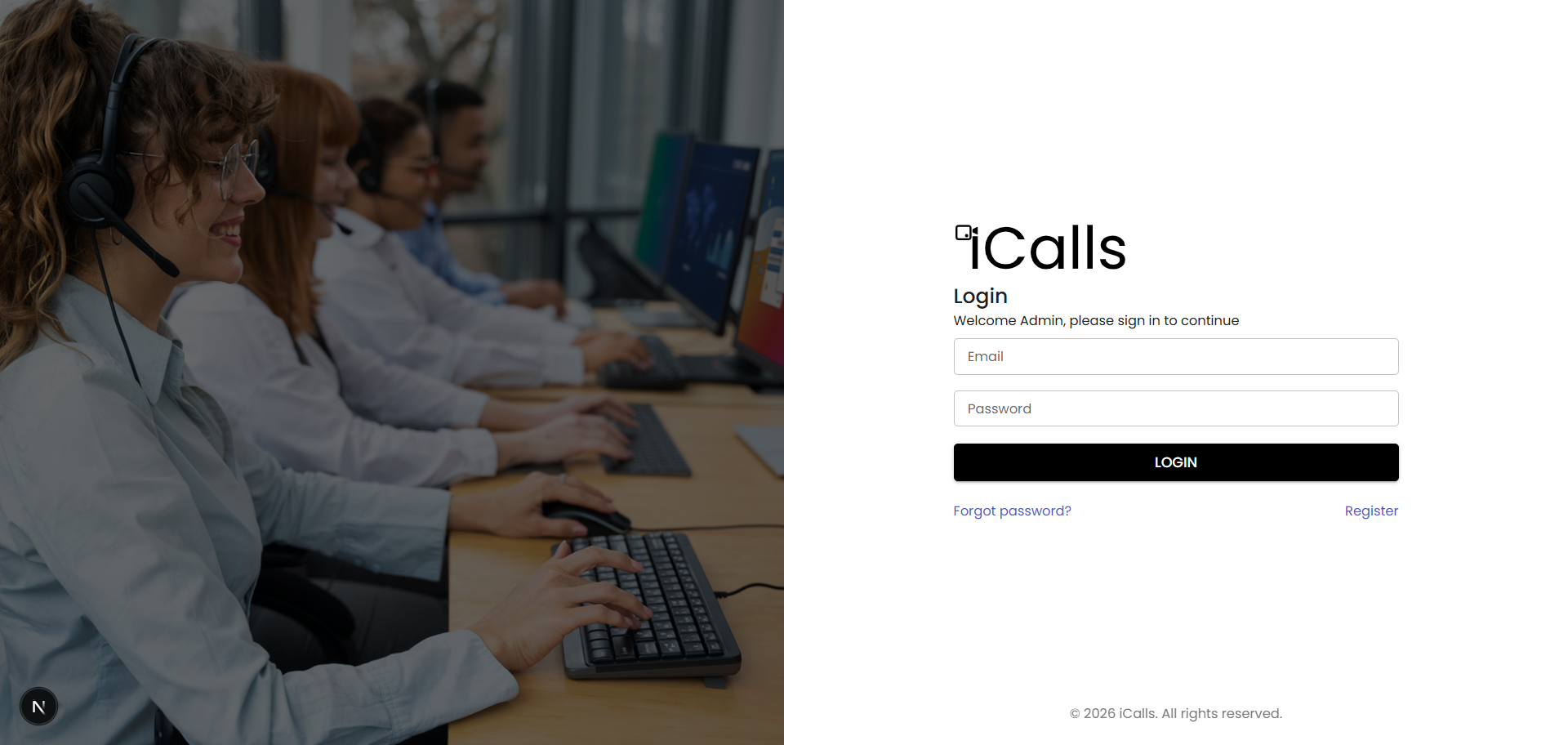
Step 2: Login to iCalls
- Go to the Login page
- Enter your registered email and password
- Click Login
You will be redirected to the Organization Admin Dashboard.
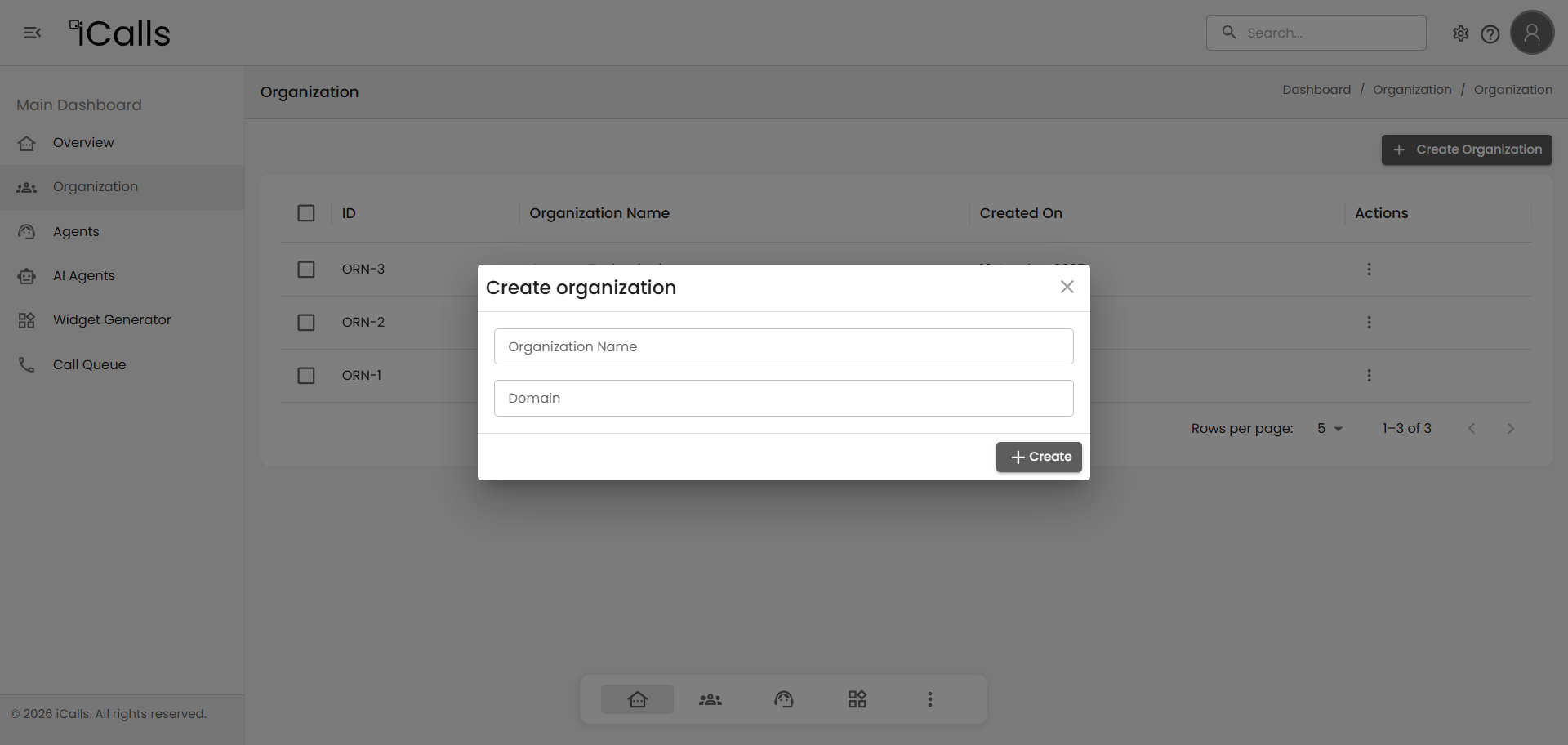
Step 3: Create an Organization
From the dashboard:
- Navigate to Organization
- Click Create Organization
- Enter:
- Organization Name
- Domain
- Click Create
📌 An organization represents your company or client account.
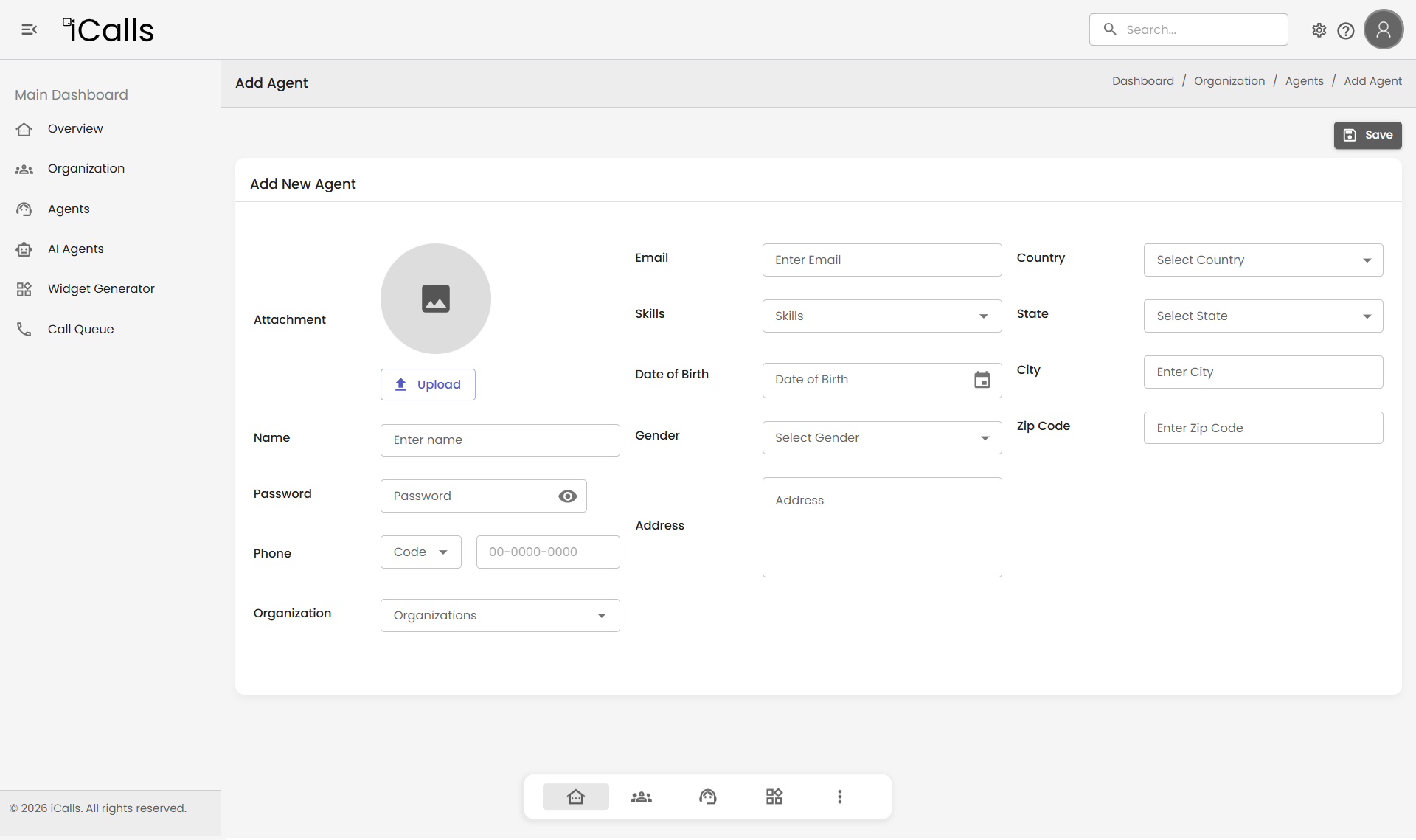
Step 4: Add Agents
Human Agents
- Go to Agents
- Click Add Agent
- Fill in:
- Name, Email, Phone
- Skills
- Organization
- Login credentials
- Click Save
Agents can now log in and receive calls.
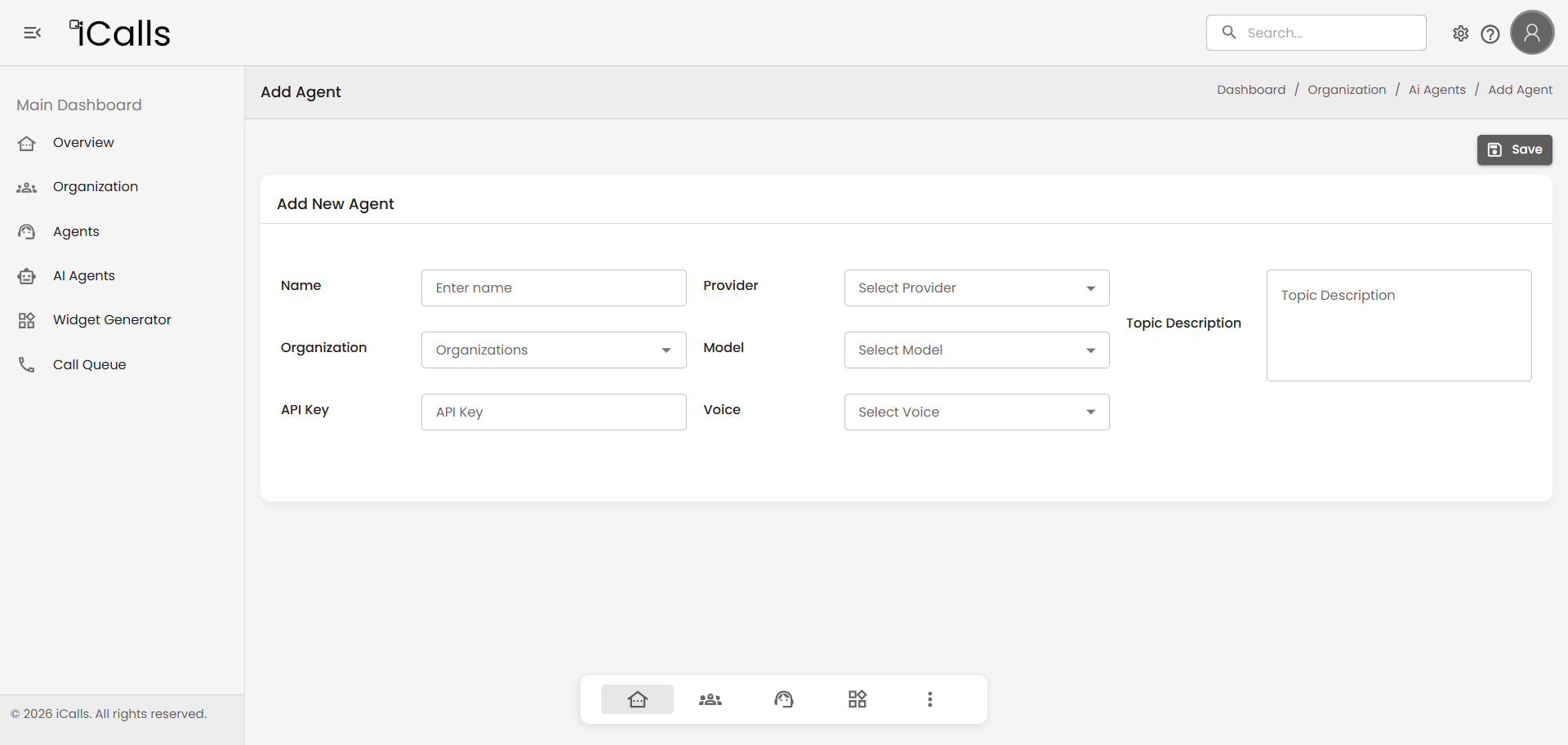
AI Agents (Optional)
- Go to AI Agents
- Click Add AI Agent
- Configure:
- Provider
- Model
- Voice
- Topic description
- API key
- Save the AI agent
📌 AI agents can handle calls automatically when configured.
Step 5: Create a Call Widget
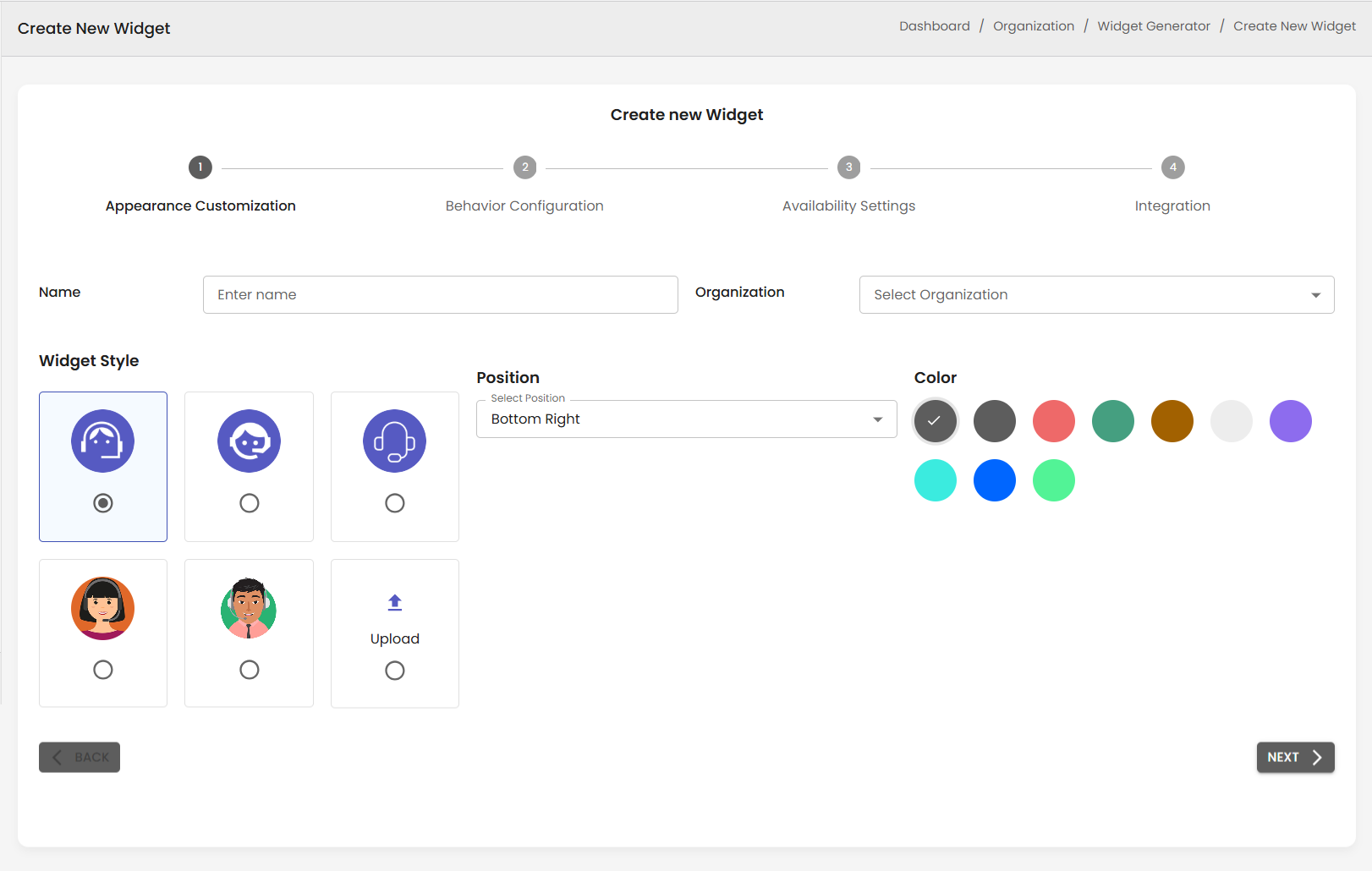
- Navigate to Widget Generator
- Click Create New Widget
- Complete the 4 steps:
- Appearance Customization
- Behavior Configuration
- Availability Settings
- Integration
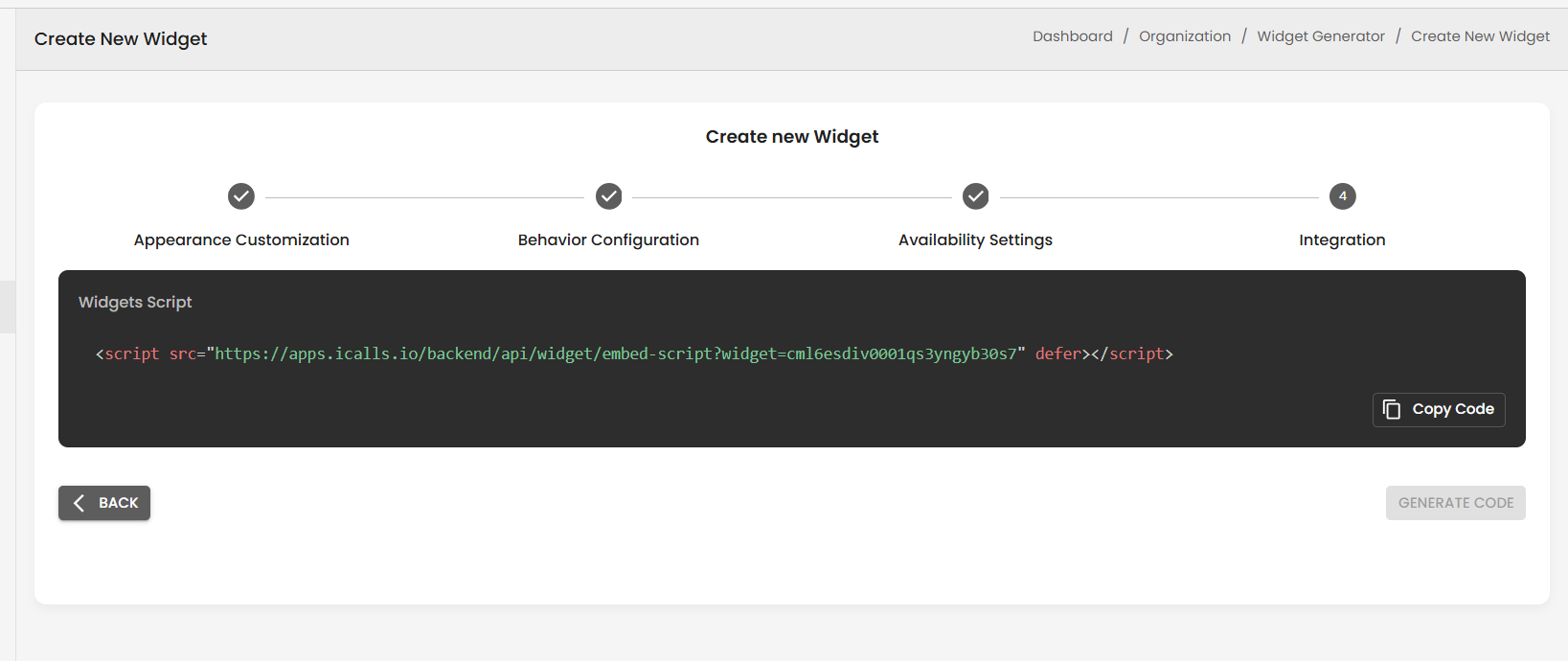
- Click Generate Code
Step 6: Embed Widget on Your Website
Copy the generated script and paste it before the closing
</body> tag of your website:
<script src="https://apps.icalls.io/backend/api/widget/embed-script?widget=YOUR_WIDGET_ID" defer></script>
🎉 Your website is now live with iCalls!
Step 7: Start Receiving Calls
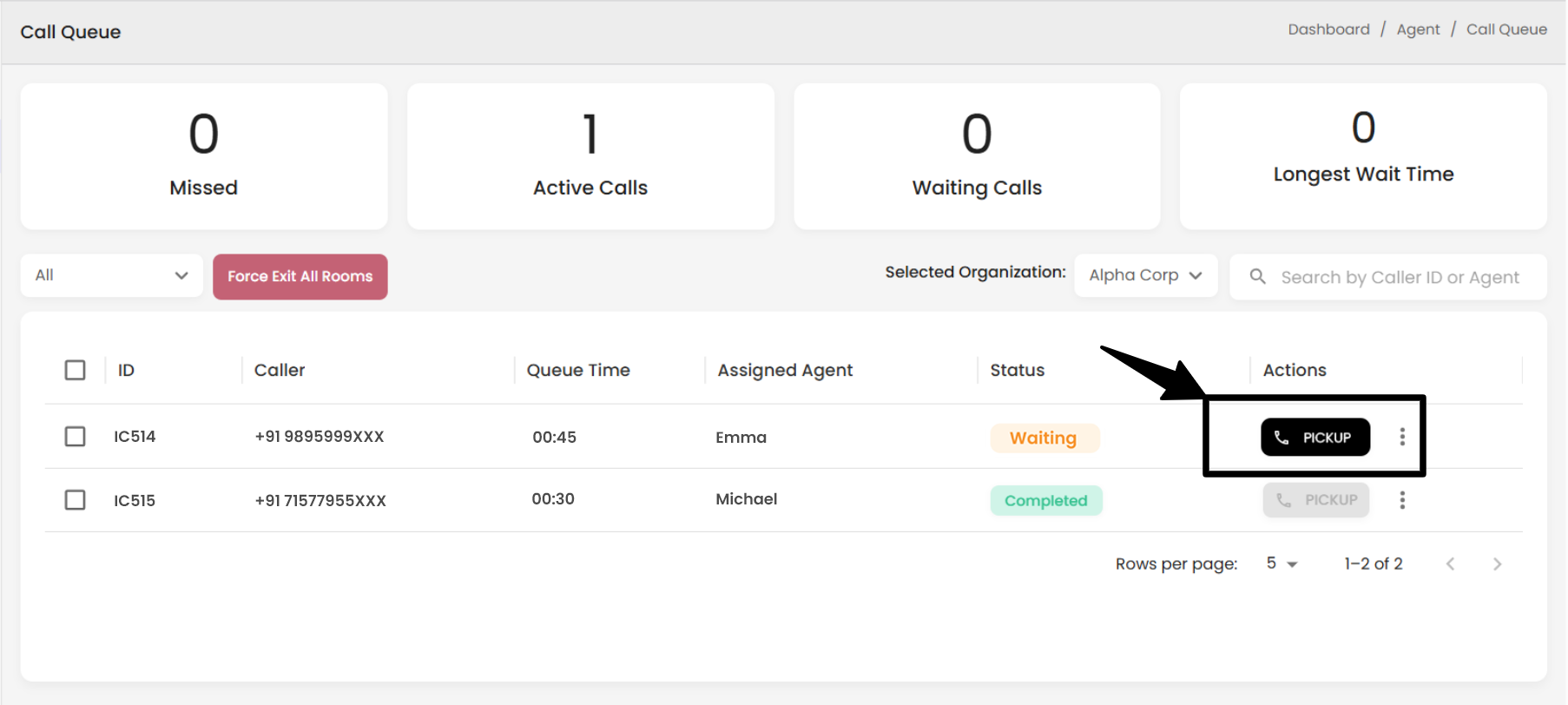
- Agents log in to their Agent Dashboard
- Toggle availability status to Online
- Join the call queue
- Start receiving video calls instantly
Need Help?
- Refer to the relevant section in this documentation
- Contact your Organization Admin
- Reach out to iCalls Support