Customer Experience
Public · End-User Flow
This section explains the end-to-end experience a website visitor goes through when using the iCalls Video Support Widget — from opening the widget to completing a live video call.
Overview (Customer Video Call Flow)
The Live Support widget is the first interaction point for visitors who need real-time assistance. It appears as a floating widget on the website and allows users to initiate a video call instantly.
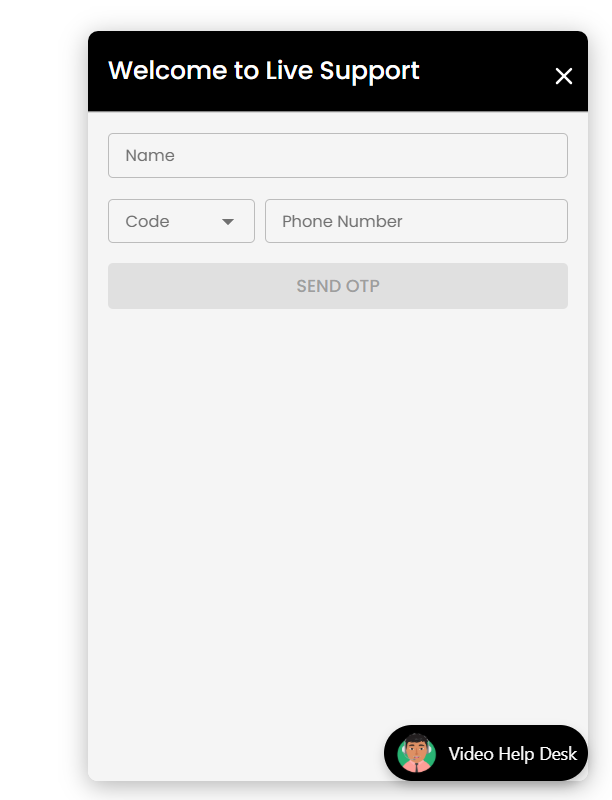
What the User Sees
- Popup titled “Welcome to Live Support”
- Input fields:
- Name
- Country Code
- Phone Number
- Send OTP button
- Floating Video Help Desk button
What Happens
- The visitor clicks the Live Support widget
- They enter their name and phone number
- Clicking Send OTP starts verification
- Identifies the caller before connecting
- Prevents spam and unauthorized access
- Enables call tracking and history
🔐 OTP Verification
To ensure secure access, users must verify their phone number using a One-Time Password (OTP).
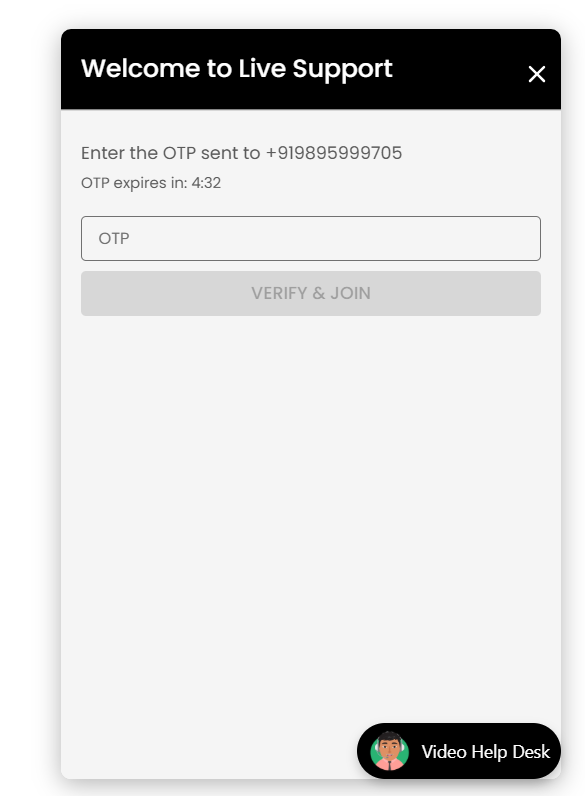
What the User Sees
- OTP input field
- Phone number displayed for confirmation
- OTP expiry countdown timer
- Verify & Join button
What Happens
- An OTP is sent to the provided phone number
- User enters the OTP before it expires
- On success, user proceeds to the pre-call setup screen
- Prevents fake or automated calls
- Ensures traceability and compliance
- Enhances trust for both customer and agent
🎥 Pre-Call Setup Screen
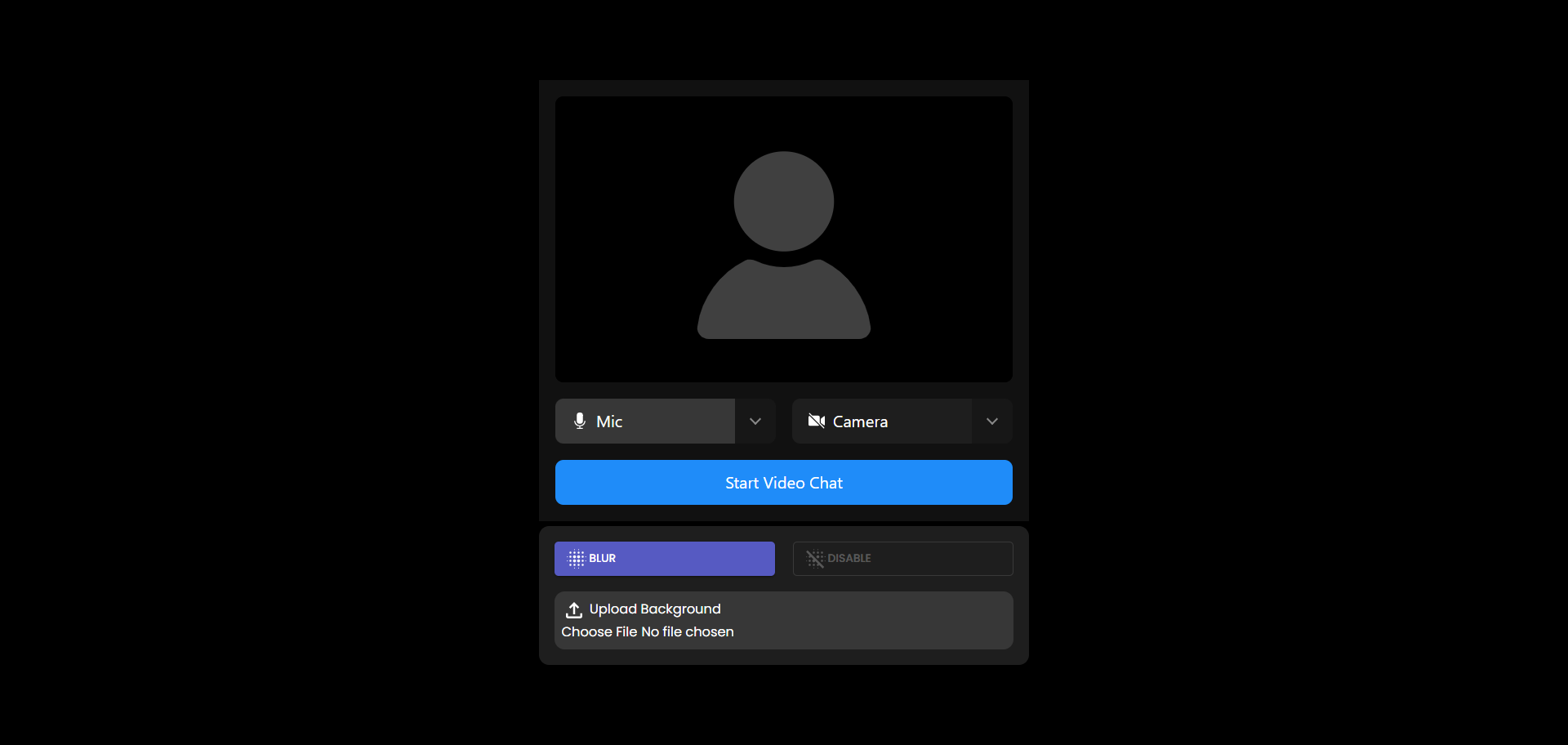
Before joining the video call, users can configure audio, video, and background settings.
What the User Sees
- Camera preview (or placeholder)
- Microphone selector
- Camera toggle
- Start Video Chat button
- Background options:
- Blur background
- Upload custom background
Best Practices for Users
- Allow browser permissions for camera and microphone
- Test audio before joining
- Use background blur for privacy
📹 Video Call Interface
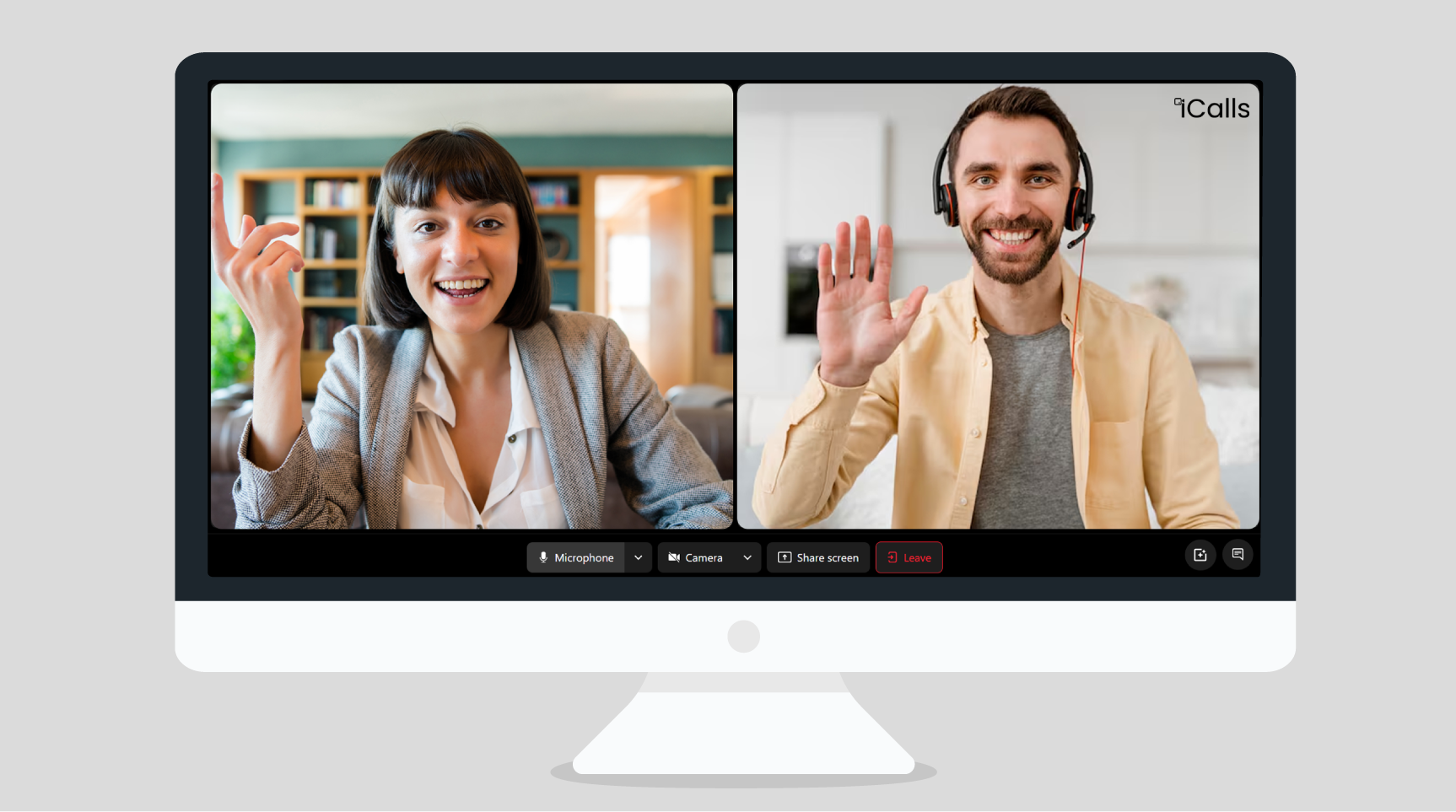
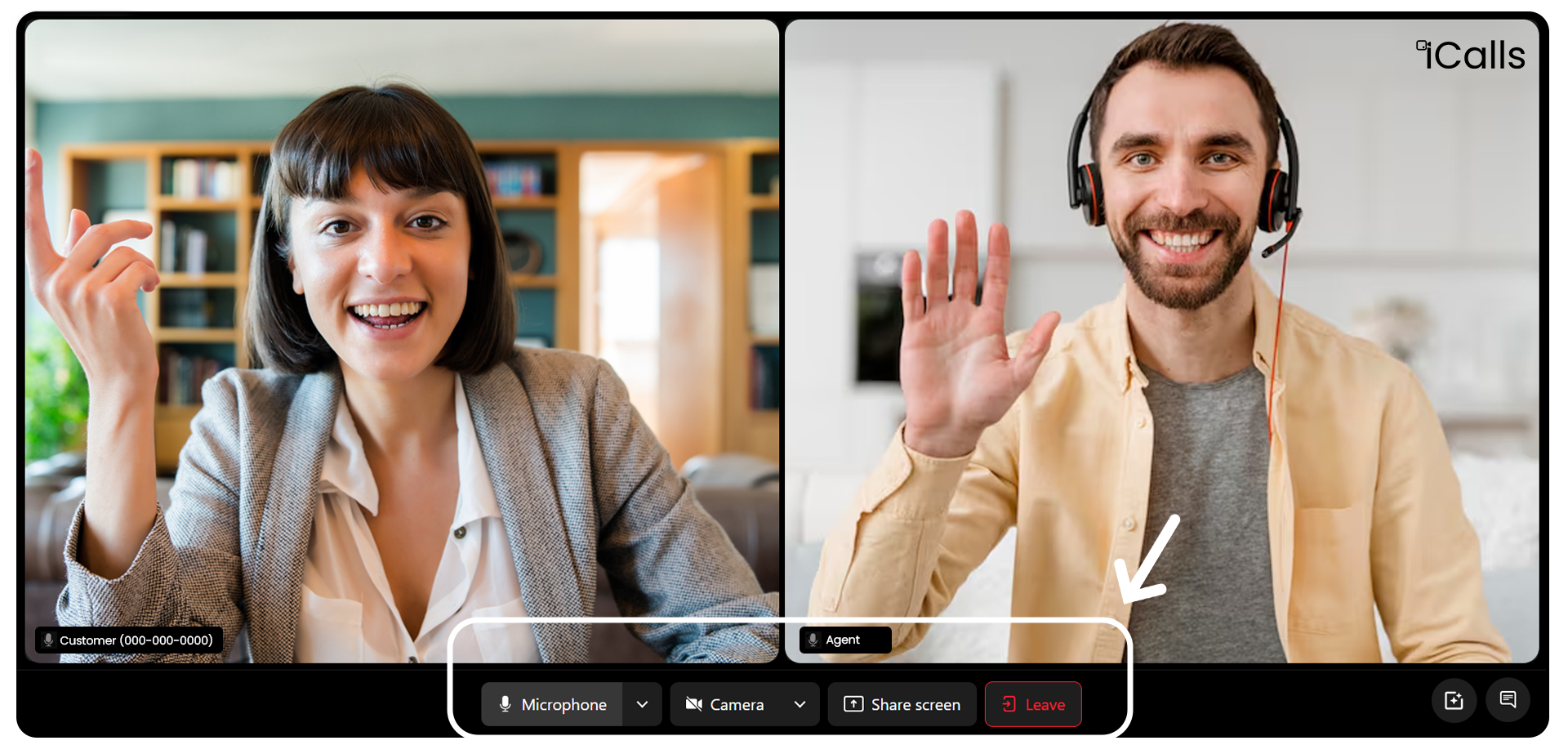
This is the main live video interaction screen between the customer and the agent (or AI agent).
What the User Sees
- Split-screen layout:
- Customer video
- Agent / SupportBot video
- Participant names displayed
- Real-time audio and video feed
Key Features
- High-quality WebRTC video
- Low-latency communication
- Secure peer-to-peer connection
🎛 In-Call Controls
Available Controls
- Microphone — Mute / Unmute
- Camera — Turn On / Off
- Share Screen — Entire screen or specific tab
- Leave — End the call immediately
User Actions
- Mute microphone when not speaking
- Turn off camera for privacy
- Share screen for troubleshooting or demos
🌫 Background & Privacy Options
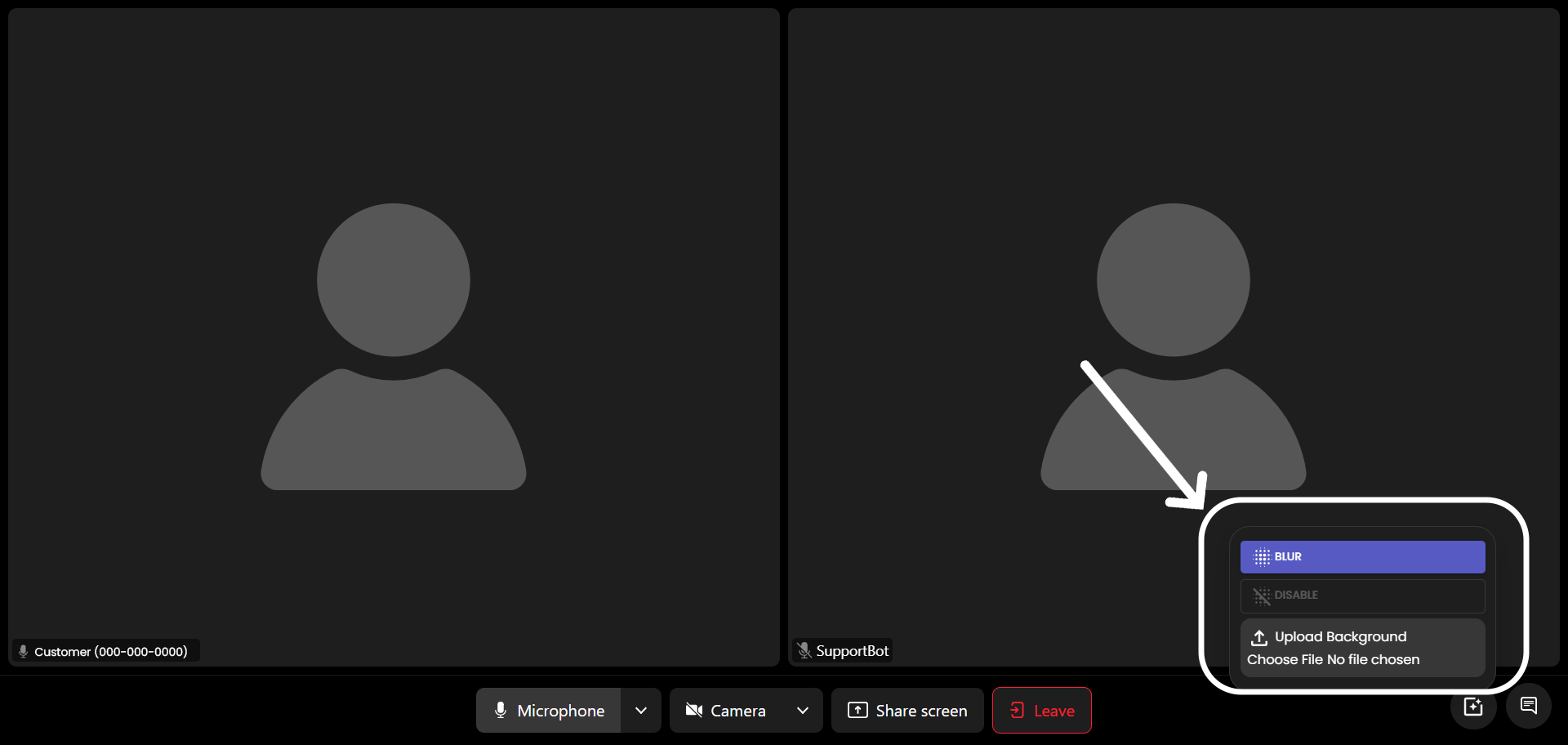
iCalls provides built-in privacy-focused background features.
Available Options
- Blur Background — Soft blur applied
- Upload Background — Custom image
- Disable Effects — Restore original feed
Use Cases
- Work-from-home privacy
- Branded backgrounds for businesses
- Professional video appearance
💬 In-Call Chat
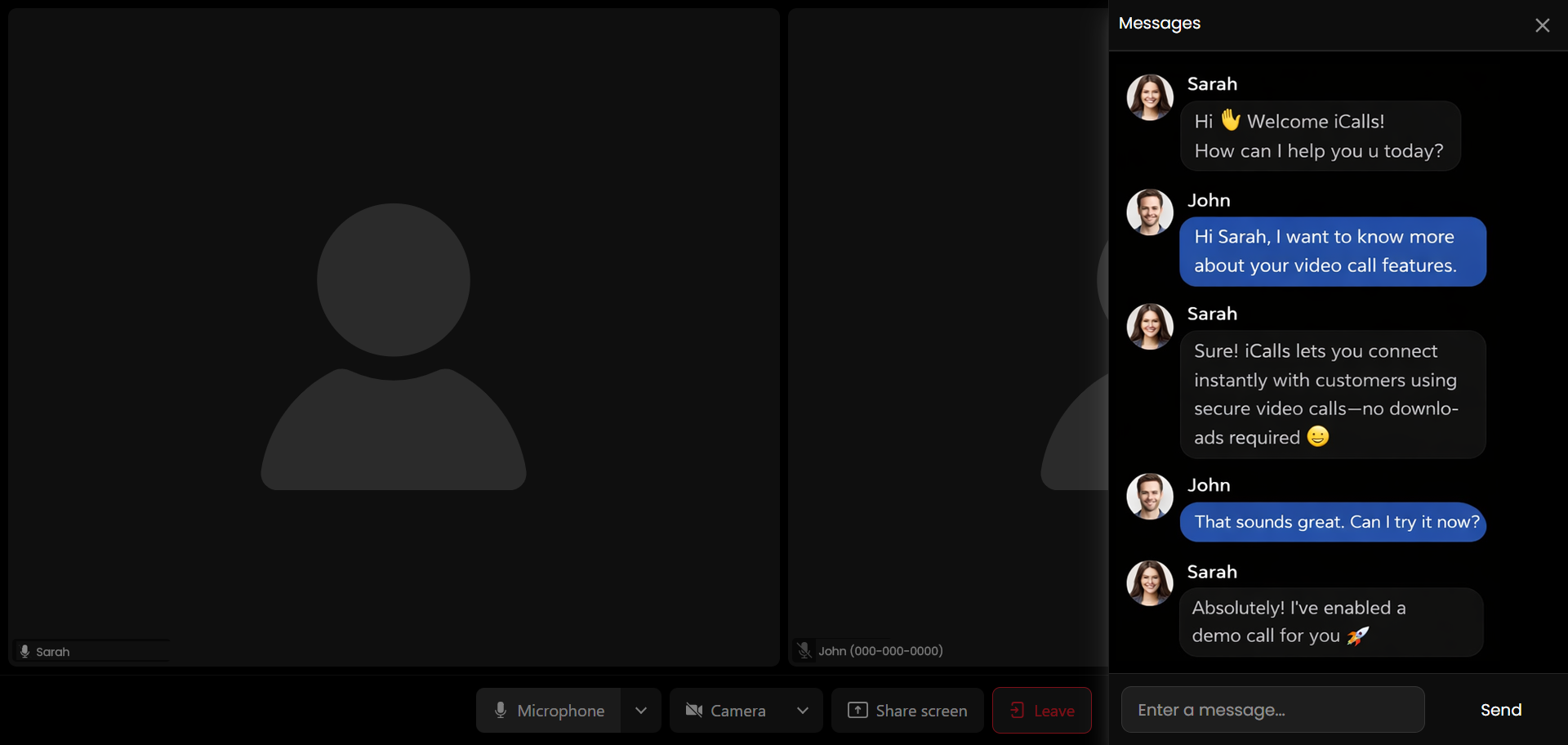
The in-call chat allows users to send text messages during the video session.
What the User Sees
- Slide-in messages panel
- Text input box
- Send button
When to Use Chat
- Sharing links or references
- Silent communication during calls
- Backup if audio issues occur
Messages are visible only to call participants and close automatically when the call ends.
🔚 Ending the Call
How the Call Ends
- User clicks Leave
- Agent disconnects
- Session ends automatically
What Happens Next
- Call is logged in the system
- Agent availability updates
- Call duration and status are recorded