Agent Guide
The Agent role in iCalls is designed for support and sales representatives who handle live video calls from website visitors. This guide explains how to use the Agent Dashboard effectively.
Overview
As an Agent, you can:
- Receive and handle incoming calls
- Join and leave call queues
- Manage your availability status
- View call history and performance metrics
Agent Login
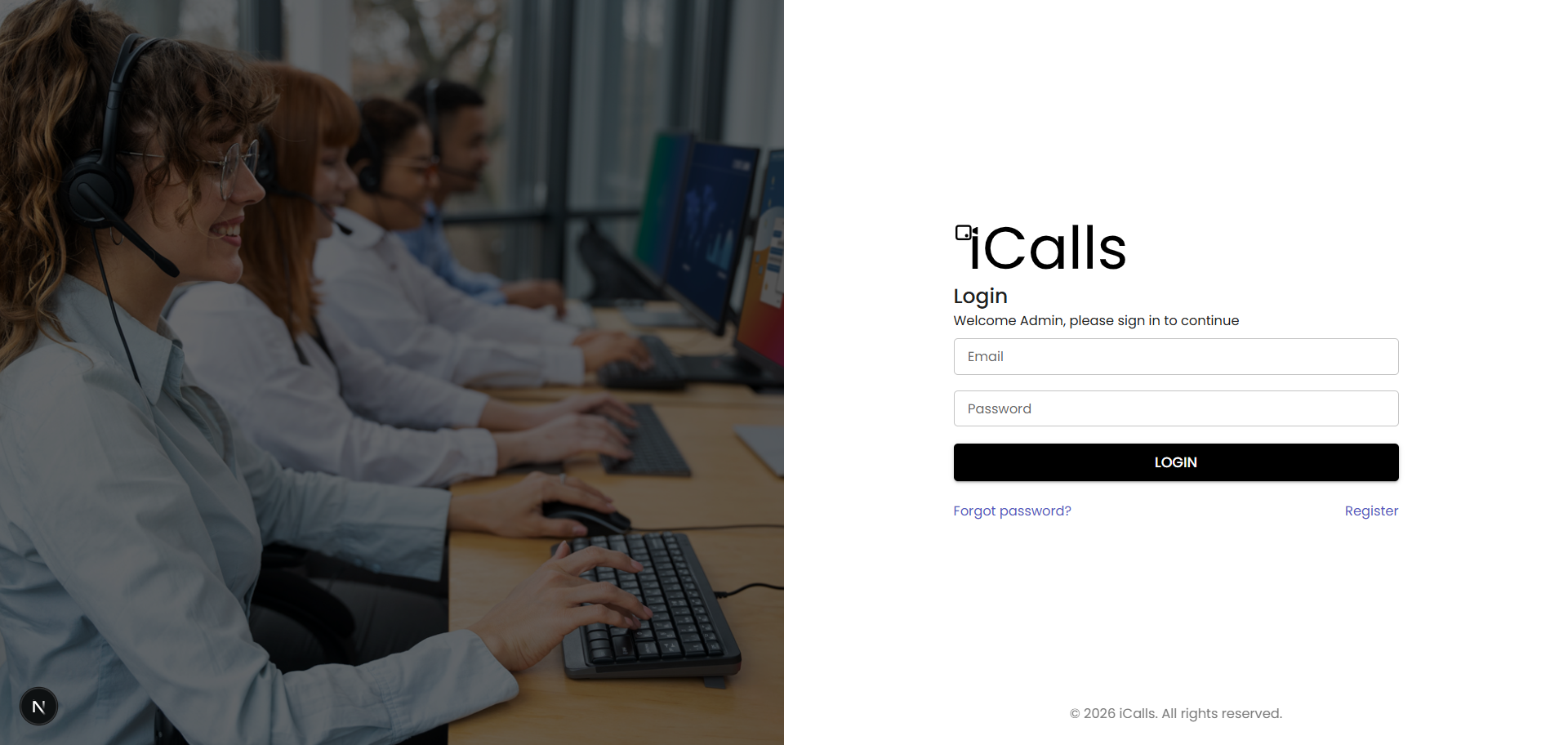
Agents log in using credentials provided by the Organization Admin.
Login Steps
- Open the iCalls login page
- Enter your email address
- Enter your password
- Click Login
Agent Dashboard
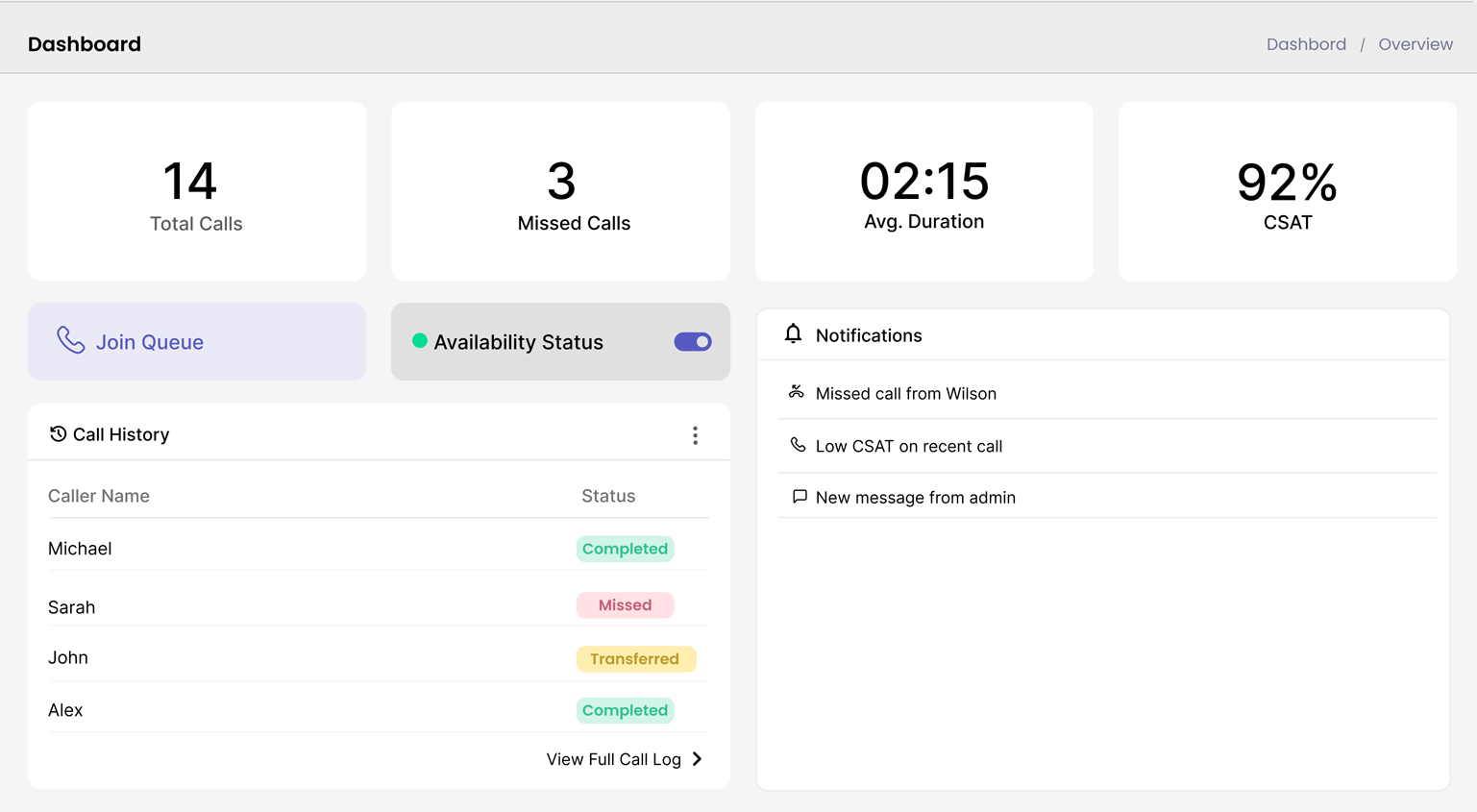
After logging in, you land on the Agent Dashboard, which provides a real-time overview of your activity.
Dashboard Metrics
- Total Calls — Total calls handled
- Missed Calls — Calls missed by the agent
- Average Duration — Average call length
- CSAT — Customer satisfaction score (if enabled)
Call Queue
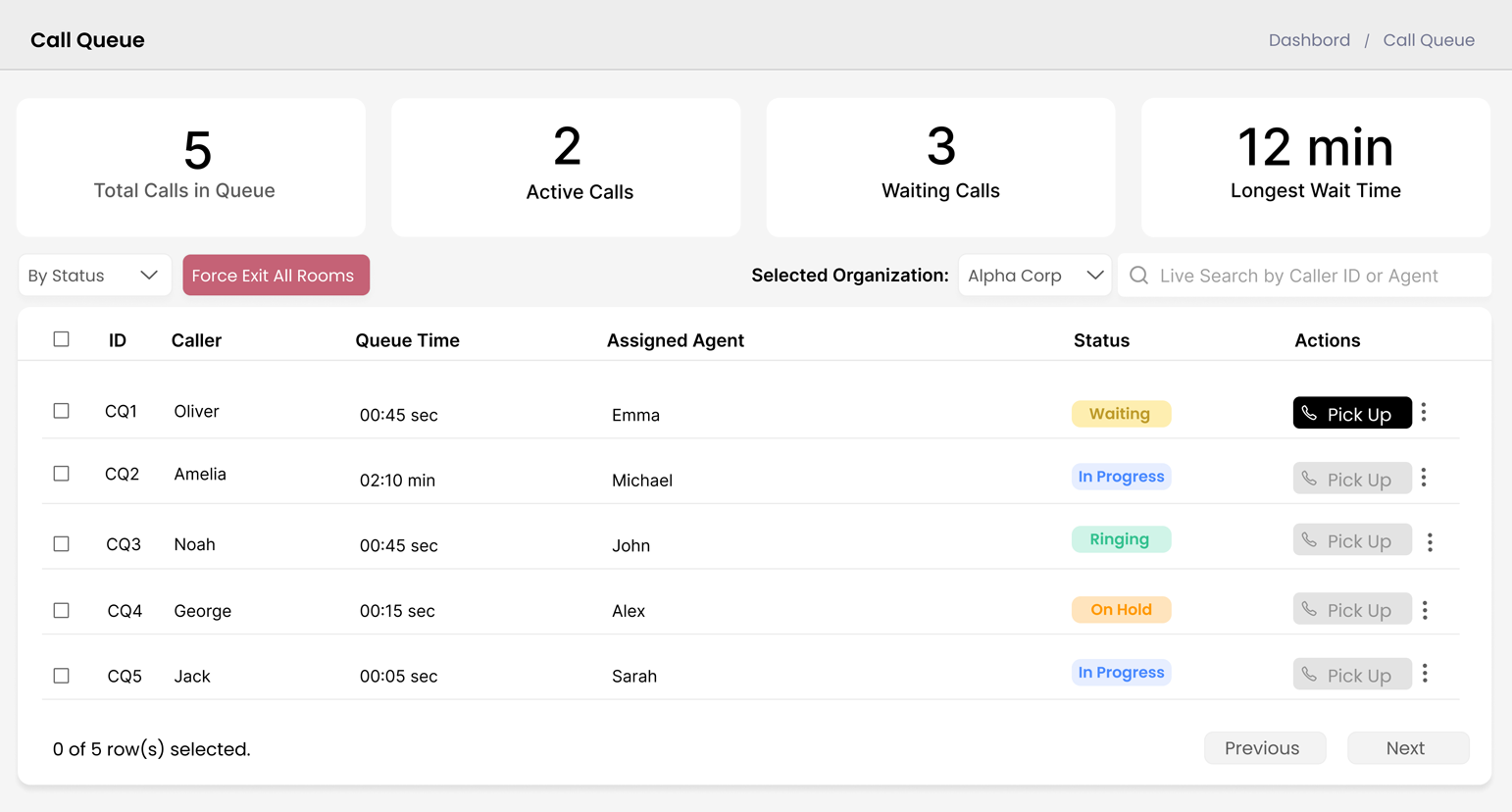
The Call Queue page is the primary workspace for agents to view, manage, and handle incoming customer video calls in real time. It provides full visibility into queued, active, and in-progress calls.
📍 Accessing the Call Queue
- Log in to your Agent Dashboard
- From the left sidebar, click Call Queue
The page updates automatically as new calls arrive or call statuses change.
📊 Call Queue Overview Cards
At the top of the page, summary cards provide a real-time snapshot of queue activity:
- Total Calls in Queue — Waiting, ringing, on-hold, and active calls
- Active Calls — Calls currently handled by agents
- Waiting Calls — Calls waiting to be picked up
- Longest Wait Time — Maximum waiting time among callers

🔍 Filters & Search
By Status Filter
- Waiting
- Ringing
- In Progress
- On Hold
Live Search
- Caller name
- Phone number
- Agent name
Search results update instantly as you type.
🏢 Selected Organization
If you are associated with multiple organizations, use the Selected Organization dropdown to filter calls.
- Only calls from the selected organization are displayed
📋 Call Queue Table (Detailed View)
Displayed Columns
- ID — Unique call identifier (e.g., CQ1, CQ2)
- Caller — Name or phone number
- Queue Time — Time spent waiting (updates live)
- Assigned Agent — Agent handling the call
- Status — Current call state
Call Status Meanings
| Status | Meaning |
|---|---|
| Waiting | Caller is waiting for an agent |
| Ringing | Call is being offered to an agent |
| In Progress | Call is currently active |
| On Hold | Call is temporarily paused |
Statuses are color-coded for quick recognition.
🎧 Actions Column
Pick Up
- Click Pick Up to accept the call
- You’ll enter the pre-video call screen, then the live call
More Options (⋮)
- Additional actions may appear based on role and permissions
🚨 Force Exit All Rooms (Admin-Controlled)
- Visible only to supervisors or admins
- Ends all active calls immediately
- Used during emergencies or system issues
✅ Best Practices for Agents
- Monitor Longest Wait Time regularly
- Prioritize Waiting and Ringing calls
- Use Live Search during high call volumes
- Keep availability status ON
- Respond promptly to reduce wait times
🧠 What Happens After Picking Up a Call?
- Enter the Pre-Video Call Screen
- Configure microphone, camera, and background
- Start the Live Video Call
- Use in-call tools: mute, camera toggle, chat, screen share
These screens are documented separately under Video Call Experience.
Notifications
The dashboard shows:
- Call alerts
- Queue updates
- System notifications
Best Practices for Agents
- Join the queue only when ready to handle calls
- Keep availability status accurate
- Respond quickly to reduce wait times
- Maintain professional communication
- Review call metrics to improve performance
Agent Permissions
| Feature | Agent |
|---|---|
| Receive Calls | ✅ |
| Join / Leave Queue | ✅ |
| View Call Queue | ✅ |
| View Call History | ✅ |
| Create Widgets | ❌ |
| Manage Agents | ❌ |
| Configure AI Agents | ❌ |
Common Agent Scenarios
Not Receiving Calls?
- Check availability status
- Ensure you have joined the queue
- Confirm business hours are active
Missed Calls Increasing?
- Stay available during active hours
- Monitor queue load
- Communicate with admin if overwhelmed
Security & Privacy
- All calls are encrypted
- Do not share login credentials
- Log out when not in use